
 TrafficTriage
Bolt Site Not Showing Up on Google? The 60-Second Triage
By Ugur Saritepe · July 9, 2026
Your Bolt site looks finished in the preview, but Google acts like it doesn't exist. In almost every case Bolt hands Google an empty HTML shell, and the fix — a setting called SEO Boost — is off by default and hidden until you connect a custom domain. This guide finds your exact cause in about a minute.
The 60-second self-diagnosis
Do these two checks before changing anything. First, open Google and search site:yourdomain.com (your real domain, no spaces):
- Zero results.Google has indexed nothing. Your problem is almost certainly the empty-HTML issue or a publishing or domain slip — causes 1–5.
- Only the homepage shows.Google found you but is skipping your other pages — look at causes 6–7.
- Pages show, but you get no clicks.That isn't an indexing problem; it's a ranking and content one, and nothing below will move it. That case needs a different diagnosis (it's what our Triage Report is built for).
Second, open view-source:https://yourdomain.com(view source, not “inspect element” — inspect shows the page after JavaScript runs, which hides the exact problem you are hunting). Use Ctrl+F to search for a full sentence you can see on your live page. If that sentence is missing from the source, you have cause 1, and it is almost always the whole problem.
The core cause on Bolt: an empty HTML shell
1. Google sees a blank page, not your content
Bolt's default project renders in the browser: the server sends a nearly empty <div id="root">and JavaScript draws your content afterward. You see the finished page; Google's first look often sees the blank shell. Google can run JavaScript, but that rendering is queued, delayed, and unforgiving of errors, so many client-rendered pages never make it into the index.
30-second check: the view-source search you just ran. If your headline and body text are not in the raw source, this is your cause. Bolt has a native fix for exactly this, and it is the next cause.
2. SEO Boost is switched off (the fix hides here)
SEO Boost is Bolt's built-in fix for the blank-shell problem, and it is off by default. Per Bolt's SEO Boost documentation, it pre-renders each page and serves that finished HTML to search-engine crawlers instead of the JavaScript app — so Google gets real content on the first visit. The same doc confirms it is turned off until you enable it.
How to turn it on (steps straight from that doc):
- Click the gear icon at the top of your project.
- Open
All project settings. - Go to
Domains & Hosting. - Click
Enable SEO Boost.
view-source and SEO Boost is off, this is your whole problem. Turn it on, republish, and re-check view-source. Nothing else on this page matters until Google can read your content.One documented exception: if your Bolt project is a Next.js App Router app, the same SEO Boost doc flags a known issue and recommends leaving SEO Boost offfor Next.js projects. Next.js already renders HTML on the server, so it doesn't need SEO Boost the way the default client-rendered app does.
3. You're still on the free .bolt.host domain
If you looked for SEO Boost and the option wasn't there, this is why: SEO Boost only appears after you connect a custom domain. Bolt's Domains documentation confirms custom domains aren't on the free tier, so a free yourproject.bolt.host site is stuck serving the blank shell to Google with no toggle to fix it in place.
Fix: connect a domain you own (or one bought through Bolt) under Domains & Hosting, then the SEO Boost toggle from cause 2 appears. A custom domain also matters for its own sake — it's the address you want ranking, not a throwaway subdomain.
Publishing and deployment causes
4. You published stale code
Bolt separates your working project from what's actually live: the Publish panel shows a “last published” time and flags unpublished changes. It's common to fix something, assume it's live, and be looking at an older deployment that still has the old problem — including SEO Boost being off on the version Google crawled.
30-second check:open the Publish panel and look for an “unpublished changes” notice. If it's there, publish and wait for it to finish before judging any fix. Then reload view-source on the live URL to confirm the new version is actually serving.
5. The live site is blank but the preview works
A different failure from cause 1: the page renders fine inside Bolt's preview but shows a white screen on the published URL. Bolt's troubleshooting guide notes projects often show a white screen when a required environment variable is missing from the deployed build. A blank live page means Google indexes nothing, so from the outside it looks identical to an indexing problem.
30-second check:open your live URL, then open the browser console (F12 → Console) and look for red errors — missing-variable messages or failed asset requests point straight at the cause. Fix:add the missing variables to your Bolt project's environment settings and republish; for stubborn cases, ask Bolt to audit every environment variable the app requires, exactly as that troubleshooting guide suggests.
Page-level causes (once Google can read you)
6. You never actually told Google you exist
A brand-new domain with no links pointing at it can take weeks for Google to find on its own. If you launched recently, haven't verified the site in Google Search Console, and haven't submitted a sitemap, nothing may be broken — Google just hasn't met you yet.
Fix: verify your domain in Search Console, submit yourdomain.com/sitemap.xml, then use URL Inspection to ask Google to recrawl your homepage. First pages usually appear within days; a small site within one to two weeks. If four or more weeks pass with Search Console verified and still nothing indexed, stop waiting — a blocker from earlier in this list is the real cause.
7. No sitemap, canonicals, or per-page titles
Bolt won't add SEO plumbing unless you ask. Many Bolt sites ship with no sitemap.xml, no canonical tags, and the same title on every page — so even after Google can read your content, it struggles to tell your pages apart or find them all. A canonical tag is the line that tells Google which URL is the “real” one.
30-second check: open yourdomain.com/sitemap.xml in a browser (a 404 means you have none), and check view-source for a rel="canonical" line and a unique <title>. Fix:prompt Bolt directly — ask it to generate a sitemap.xml, add a unique title and meta description per route, and add a self-referencing canonical tag to every page. With SEO Boost on, you can also set these per page in its metadata panel.
The verdict: fix exactly one thing this week
Run these in order and stop at the first hit:
- Content missing from view-source? Enable SEO Boost (causes 1 + 2). This is the fix for most Bolt sites and takes two minutes.
- SEO Boost option not showing? Connect a custom domain first, then enable it (cause 3).
- Fixed it but nothing changed? Check the Publish panel for unpublished changes and republish (cause 4).
- Live page blank while the preview works? Check the console for a missing environment variable (cause 5).
- None of the above and the site is under four weeks old? Submit your sitemap, request indexing, and genuinely wait (cause 6).
How to confirm the fix worked
Re-run the check that caught your cause. For the common one, reload view-sourceon your live URL after enabling SEO Boost and republishing — your real text should now be in the raw HTML. Bolt's docs note its pre-render cache holds each page for 24 to 48 hours, so give crawler-facing changes up to two days to settle. Then open URL Inspection in Search Console for that page and request indexing; recrawl usually happens within days. If view-source looks right but pages still don't appear after a week, go back down the verdict list — a second cause was hiding behind the first.
On a different builder? The same triage exists for other platforms in our platform guides, including the Vercel and Next.js version.
FAQ
Why can't I find SEO Boost in my Bolt settings?
Because it only appears after you connect a custom domain. Bolt's own hosting docs state SEO Boost requires a connected custom domain, so on a free .bolt.host address the option is hidden. Connect your domain under Domains & Hosting and the toggle shows up.
Does enabling SEO Boost fix Google indexing on its own?
For the most common cause — Google seeing a blank JavaScript shell — it's the core fix, because Bolt then serves rendered HTML to crawlers. You still need Google to discover the site: verify it in Search Console and submit a sitemap so recrawling actually happens.
How long until a new Bolt site shows up on Google?
With SEO Boost on, Search Console verified, and a sitemap submitted: first pages typically within days, a small site within one to two weeks. Bolt's docs note its pre-render cache stores each page for 24 to 48 hours, so crawler-facing changes lag by up to two days. Past four weeks with everything set and still nothing indexed, assume a blocker from the list above.
Should I turn on SEO Boost for a Next.js project on Bolt?
No — Bolt's SEO Boost documentation calls out a known issue on Next.js App Router projects and recommends leaving it off for them. Next.js renders HTML on the server already, so it doesn't need it. SEO Boost is for the default client-rendered app.
Not sure which cause is yours?
Get a free Triage Report: eight checks run from your URL alone — no Search Console access needed — each scored Critical / Monitor / Healthy, ending with the one thing to fix this week. It renders on your screen in about half a minute — no signup, no email required.
In your AI assistant
Ask your AI about your own site
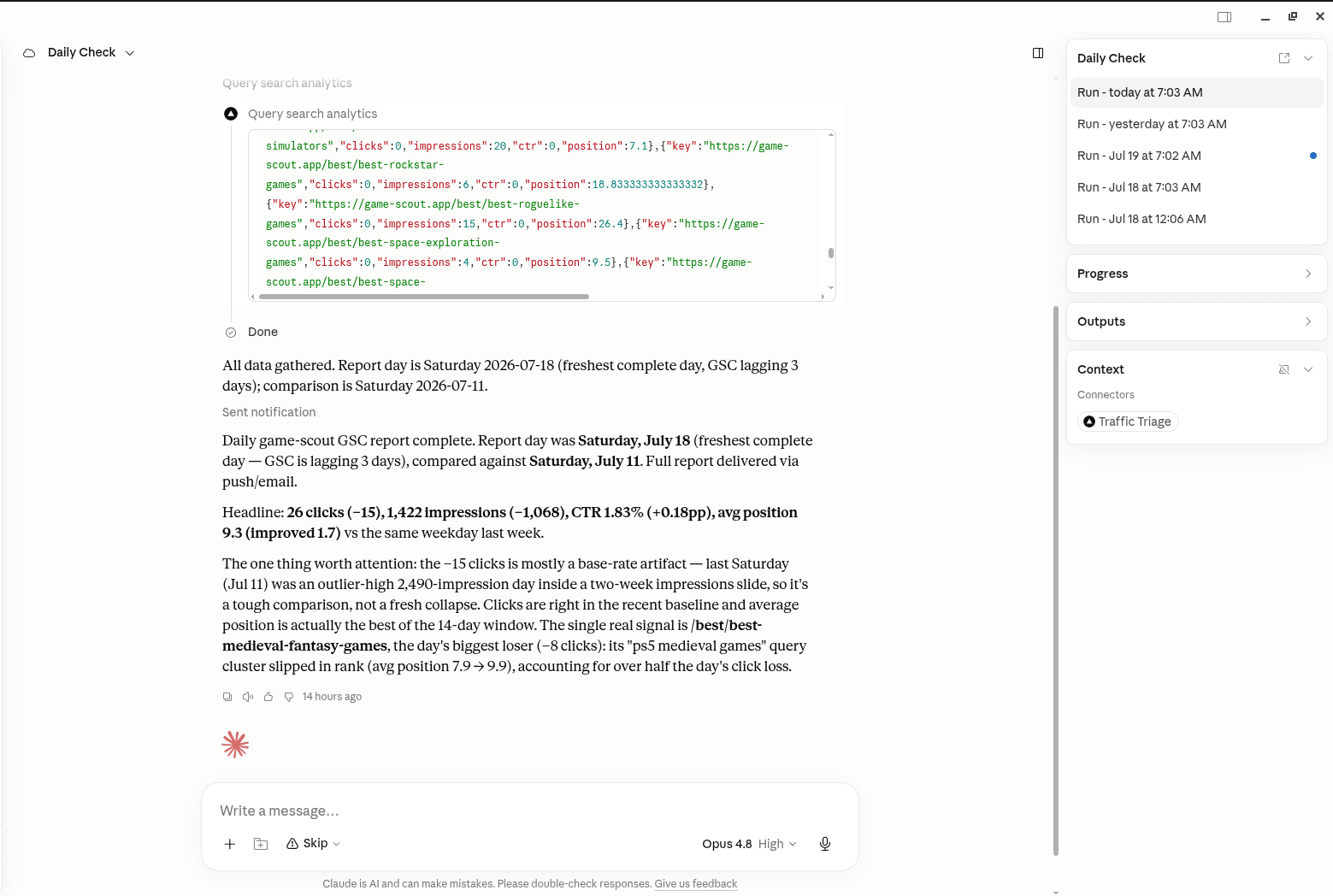
TrafficTriage plugs into Claude, Cursor, and ChatGPT. Your assistant runs the 8 checks, reads your Search Console data, and can even check your site every morning. Free account, no API key, nothing to install.