
 TrafficTriage
MCP server · no install · free account
Your AI assistant, with real data about your site
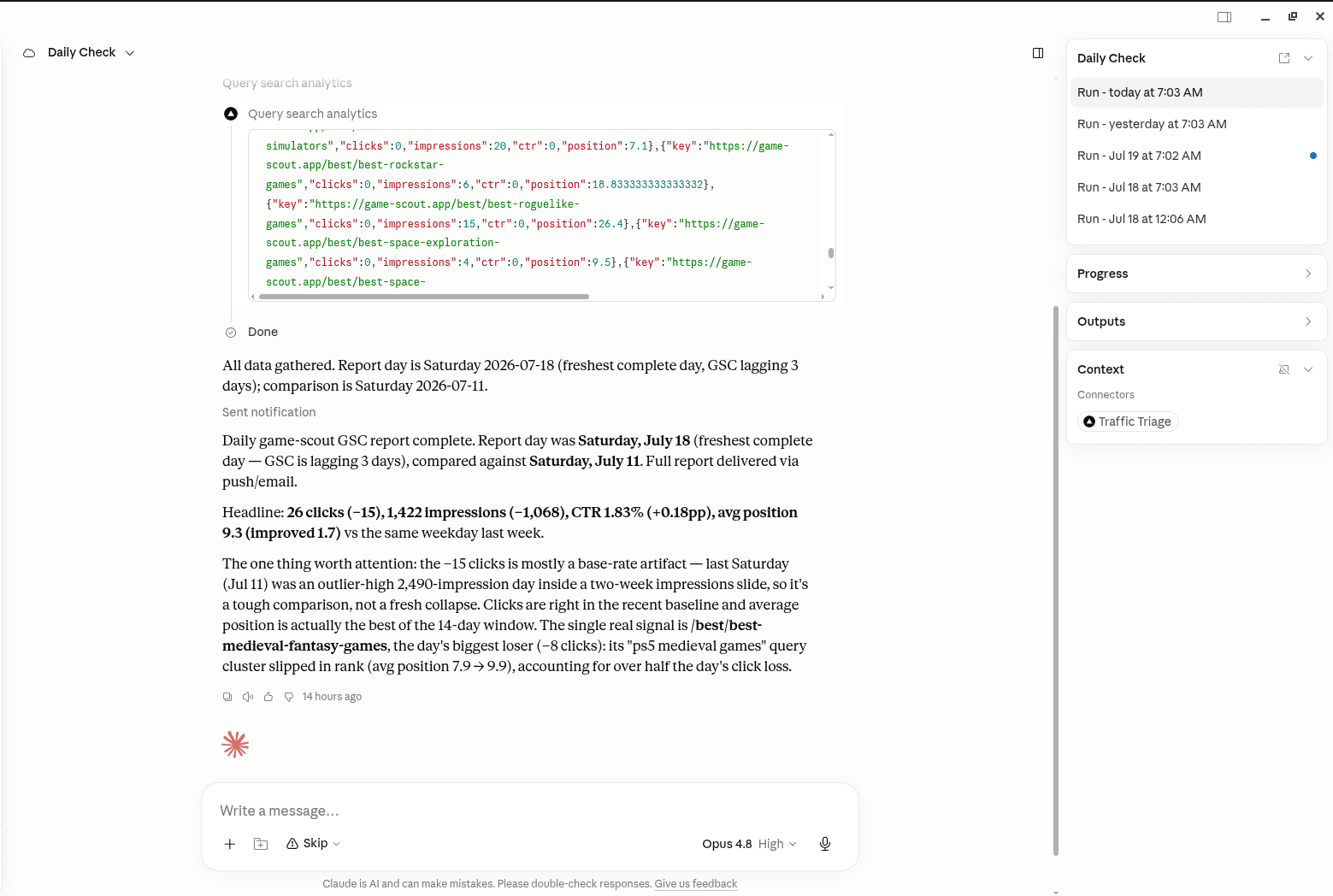
This is Claude running a TrafficTriage daily check on a real site: it pulled the Search Console numbers, compared them to last week, and named the one page that actually lost clicks. Add one URL to your assistant and it can do this for yours.
Free account, 200 site checks and 25 page analyses a month, nothing to install.
Set it up in about a minute
- 01
Create a free account
Sign up with Google or email. The account is what your reports get saved to, and what the server checks when your assistant connects.
- 02
Add the server URL to your client
In Claude, Cursor, or any MCP client, add a custom connector and paste the URL below. There is nothing to install and no API key to manage.
- 03
Sign in when it asks
The first call opens a browser window and asks you to sign in to TrafficTriage. After that your assistant can run the checks whenever you ask it to.
- 04
Optional: connect Search Console
Connect Google Search Console from your dashboard and the same assistant can read your real search data, not just what your URL shows from the outside.
Add this URL as an MCP server in your client:
https://traffictriage.com/mcpHow to add it in Claude (web and desktop)
Open Settings, then Connectors, then Add custom connector. Paste the server URL and save. The first time you use a tool, Claude opens a sign-in window. You can also add it to a scheduled task, so Claude checks your site every morning.
How to add it in Cursor
Open Cursor Settings, then MCP, then Add new MCP server. Choose the URL type, paste the server URL, and save. Cursor walks you through the sign-in on first use.
How to add it in ChatGPT
Open Settings, then Security and login, and turn on Developer mode. Then go to Settings, then Plugins, then Browse plugins, and use the + button to open the New Plugin form. Name it, set Connection to Server URL and paste the URL below, set Authentication to OAuth, tick the risk acknowledgement, and press Create. A dialog asks you to sign in with TrafficTriage - if you're already signed in, it connects straight away.
What your assistant can do
18 tools. Most are read-only; add_site, track_page, and untrack_page change your TrafficTriage account and nothing else. Your assistant picks the right one from what you asked, so you never type a tool name yourself.
Check any site
Works from a URL alone, no Search Console needed.
- run_triage
- the 8 checks and one verdict for any site
- check_page
- one page scored across access, index, content, structure, speed, and demand
- check_serp
- who ranks for a keyword right now
- get_core_web_vitals
- real-user speed data plus what to fix
Your Search Console data
Unlocked when you connect Google Search Console from the dashboard.
- run_gsc_report
- 6 checks on 90 days of your real search data
- query_search_analytics
- ask anything of your queries, pages, clicks, and positions
- list_my_sites
- your connected properties
- get_index_status
- whether Google indexed a page, and which canonical it picked
- get_sitemap_status
- submitted sitemaps, errors, and last read date
Your account
Reports created over MCP are private to your account.
- list_my_reports
- everything you have run, newest first
- get_report
- read one back in full
- add_site
- add a site to your account so its reports collect in one place
- get_topical_map
- read your site's topical map: what to cover, what is missing, what to build next
- get_my_usage
- how much of each monthly limit is left
Track page changes
Watch pages on a site you've added, and see the date each one last changed.
- track_page
- watch one page's title, headings, and content, and date what changes
- untrack_page
- stop watching a page; its recorded change dates stay
- list_site_pages
- every page on a site — score, links, health, Search Console metrics, and when it last really changed
- get_page_changes
- one page's crawl state, inbound links, and its dated change history — edits separated from routine drift and deploys
Questions
- What is an MCP server?
- MCP (Model Context Protocol) is the open standard AI assistants use to call outside tools. An MCP server is a URL you add to your assistant that gives it a set of tools it can use. The TrafficTriage server gives your assistant 18 SEO tools, so you can ask why your site isn't showing up on Google in the chat you already have open and get an answer backed by a real crawl.
- Which AI assistants work with it?
- Any MCP client. Claude and Cursor are the ones we test against. The server speaks standard Streamable HTTP MCP with OAuth, so if your client can add a remote MCP server by URL, it works.
- Do I need Google Search Console?
- No. run_triage, check_page, check_serp, and get_core_web_vitals work from a public URL alone, exactly like the free web report. Search Console is optional and unlocks the tools that read your real search data and index status: run_gsc_report, query_search_analytics, list_my_sites, get_index_status, and get_sitemap_status.
- Is it free?
- Yes to start. A free account gets 200 site checks (run_triage) and 25 page analyses (check_page) a month, which is far more than most people use, and the Search Console tools don't count against either limit. No credit card, no trial. Pro raises every allowance for a flat 9 EUR a month - see the pricing page.
- Can my assistant change anything on my site?
- No. The server crawls public pages, reads your Search Console data if you connected it, and reads reports you already own. It cannot write to your site or your Search Console. The tools that write anything - add_site, track_page, and untrack_page - write only to your TrafficTriage account: adding a site, or watching or unwatching a page for content changes.
- Who can see my reports?
- Only you. Reports created through the MCP server are private to your account, and every query is scoped to the signed-in user. A report is only shareable if you explicitly turn sharing on for it in the dashboard.
- Do I still need the free web report?
- They run the same 8 checks through the same engine, so the verdict is the same either way. The web report at /free-triage-report needs no account and is the fastest way to check one site once. The MCP server is for when you want to ask follow-up questions, check sites repeatedly, or have your assistant read your Search Console data while it helps you fix things.
Give your AI assistant the checks.
Free account, 200 site checks and 25 page analyses a month, no API key, nothing to install. Sign up and paste the URL into your client.
Create a free account