
 TrafficTriage
SEO MCP Server for ChatGPT: the Free Setup, Step by Step
By Ugur Saritepe · August 13, 2026
You want your SEO data inside ChatGPT, and every guide you find points at a tool with a monthly data bill attached. There is a free path: ChatGPT’s Developer mode takes any MCP server URL, and ours has a free tier. Here is the setup, and the one thing that breaks it.
What this costs
Nothing, on both halves. I connected the TrafficTriage MCP server to a free ChatGPT accountin August 2026 — Developer mode and custom plugins were both there. The server’s free tier covers a monthly allowance on each tool, and the Search Console tools do not count against any of them.
That matters because of what else is available. The SEO MCP servers you will find first — the ones from the big data vendors — are priced for agencies, and the data plan is the point of them. If you are chasing your first clicks rather than managing a thousand pages, you do not need that yet. Our sibling post on which SEO MCP server fits an indie hacker compares the options by the job each one does.
OpenAI moves features between plan tiers, so treat the free-plan claim as true of August 2026 and check your own Settings before you build a workflow on it.
The setup, start to finish
Five steps. The first one is the step people miss, because it lives under a menu nobody thinks to open.
- Open Settings, then Security and login, and turn on Developer mode.
- Go to Settings, then Plugins, then Browse plugins.
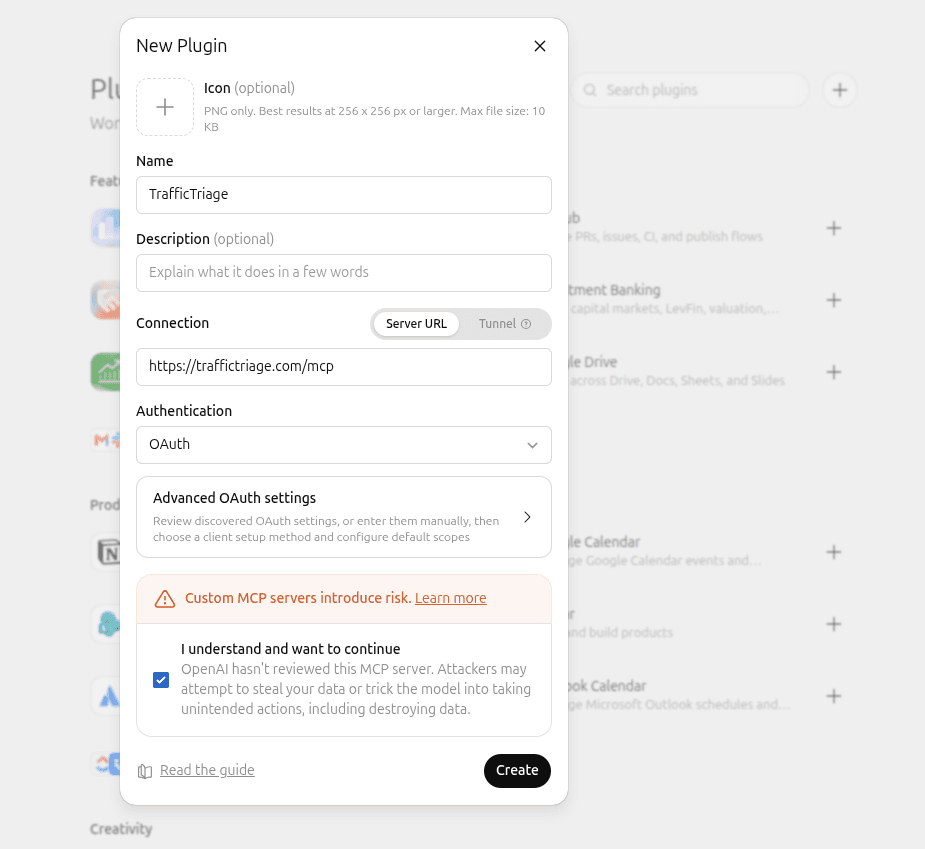
- Use the + button at the top right to open the New Plugin form.
- Give it a name, set Connection to Server URL, paste
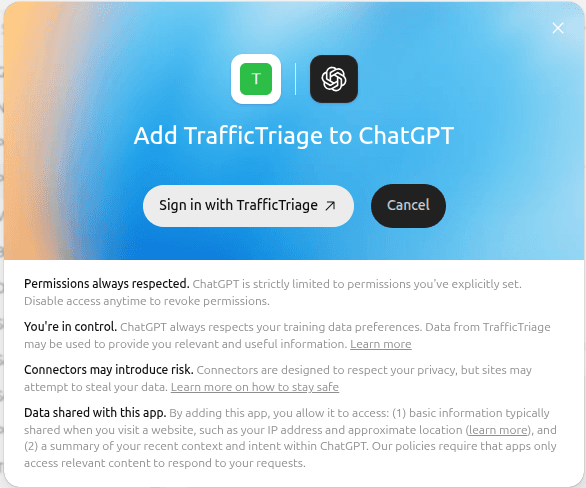
https://traffictriage.com/mcp, set Authentication to OAuth, tick the risk acknowledgement, and press Create. - Sign in when the dialog appears. If you are already signed in to TrafficTriage it connects straight away.
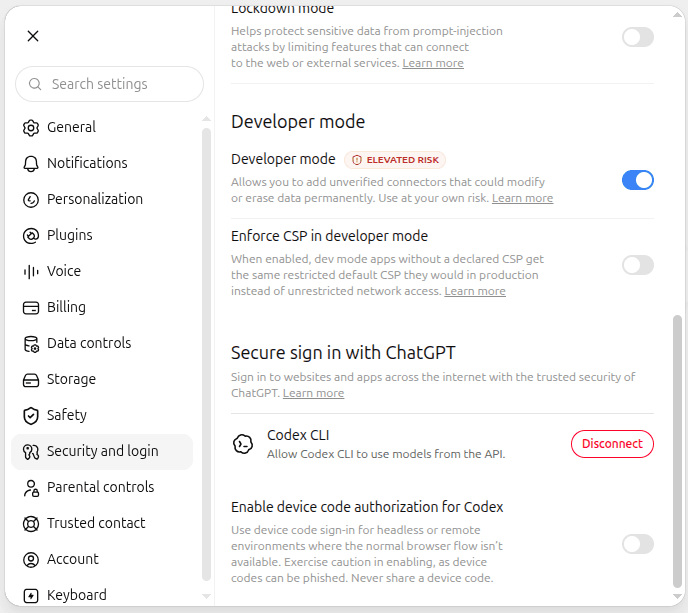
The ELEVATED RISK badge next to the toggle is real, and worth reading rather than clicking past. Developer mode lets you add servers nobody has reviewed. Add servers you trust, and read the risk text on the form before you tick it.
What to ask once it is connected
Ask in plain English and let the assistant pick the tool. The two that earn their keep first:
- A triage run on any URL— the 8 checks that decide whether a site can be found at all. Works on sites you do not own, so you can point it at a competitor.
- A question about your own search data, if you have connected Search Console: which queries you show up for, which pages earn clicks, where you rank. Ask for a table and you get a table.
The four ways to connect Search Console to an assistant covers the other routes, including the ones that do not involve an MCP server at all.
When it works in Claude but fails in ChatGPT
This is the failure I hit, and it is worth writing down because the symptom points away from the cause. Our server connected to Claude on the first try. The same URL, pasted into ChatGPT, failed at sign-in. Nothing about the ChatGPT setup was wrong.
The cause was a missing OAuth scope.ChatGPT’s connector always requests openid when it sends you to the authorize screen. A client registered through Dynamic Client Registration only receives the scopes your protected resource metadata advertises. If openid is not on that list, ChatGPT asks for a scope its client was never granted, and the sign-in fails with invalid_scope. Claude never requests openid, which is why the same server connects there without complaint.
The fix is one entry in the metadata your server publishes at /.well-known/oauth-protected-resource/<path>. Ours looked like this, and failed every ChatGPT connection:
scopes_supported: ["profile", "email"]
Adding one value fixed it:
scopes_supported: ["openid", "profile", "email"]
To check your own server, request its protected resource metadata and read the scope list:
curl -s https://your-server.example.com/.well-known/oauth-protected-resource/mcp
Good output lists openid among scopes_supported. Bad output omits it, and every ChatGPT connection will fail while Claude keeps working. The OpenAI developer forum carries a steady trickle of MCP connection problems where the server behaves differently across clients; scope mismatches are an easy one to rule out first.
Confirming it actually works
A connected plugin is not the same as a working one. Ask a question that can only be answered by calling a tool — something with a real URL or a real date range in it, not a general SEO question the model could answer from memory.
Then check that the answer says it called something. ChatGPT shows a line naming the tool it ran above the answer. If you get a confident reply with no tool call, the model answered from training data and the connection is not being used, however green it looks in Settings.
FAQ
Do I need a paid ChatGPT plan for this?
No. I set this up on a free ChatGPT account in August 2026 - Developer mode and custom plugins were both available. OpenAI moves features between tiers, so check your own Settings before planning around it.
Why does my MCP server work in Claude but fail in ChatGPT?
Most often the openid scope. ChatGPT's connector always asks for openid when it sends you to the sign-in screen, and a client registered through Dynamic Client Registration only receives the scopes your protected resource metadata advertises. If openid is missing from that list, the sign-in fails with invalid_scope. Claude does not request openid, so the same server connects there without complaint.
Is this read-only?
The Search Console side is. The connection uses the webmasters.readonly scope, which lets the server read your search data and nothing else - it cannot change your site or your Search Console settings. You can revoke it from your Google account security settings at any time.
What can ChatGPT actually do once it is connected?
Run the 8 triage checks on any URL, and read your own Search Console data if you have connected it: queries, pages, positions and clicks over any date range. You ask in plain English and the assistant calls the tool.
In your AI assistant
Ask your AI about your own site
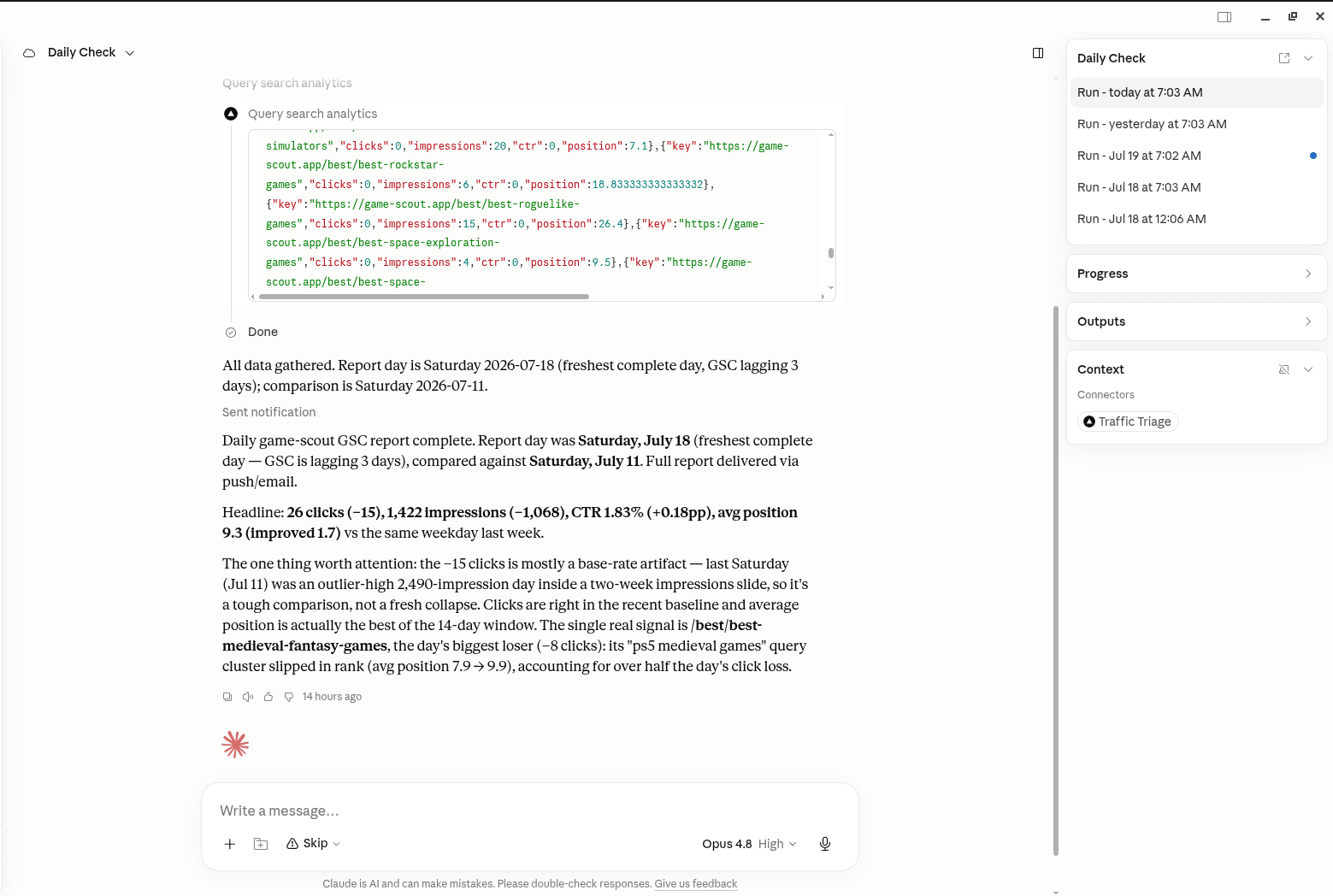
TrafficTriage plugs into Claude, Cursor, and ChatGPT. Your assistant runs the 8 checks, reads your Search Console data, and can even check your site every morning. Free account, no API key, nothing to install.